Preview Your Installed Fonts From Chrome: The FontGrid Extension
You are in the browser, you need a font, and opening a design app feels like too much. The FontGrid extension keeps your fonts one click away.
Design decisions rarely happen inside a design app. They happen in a browser tab: a client's website open on one side, a brand brief in another, a reference you found in a third. You see a heading you like, or a layout that needs a different typeface, and you want to try something now.
Opening a design application for that, creating a document, typing the text and cycling through fonts is a lot of ceremony for a quick idea. By the time it is ready, the thought has gone.
The FontGrid Chrome extension is built for that moment.
What the extension does
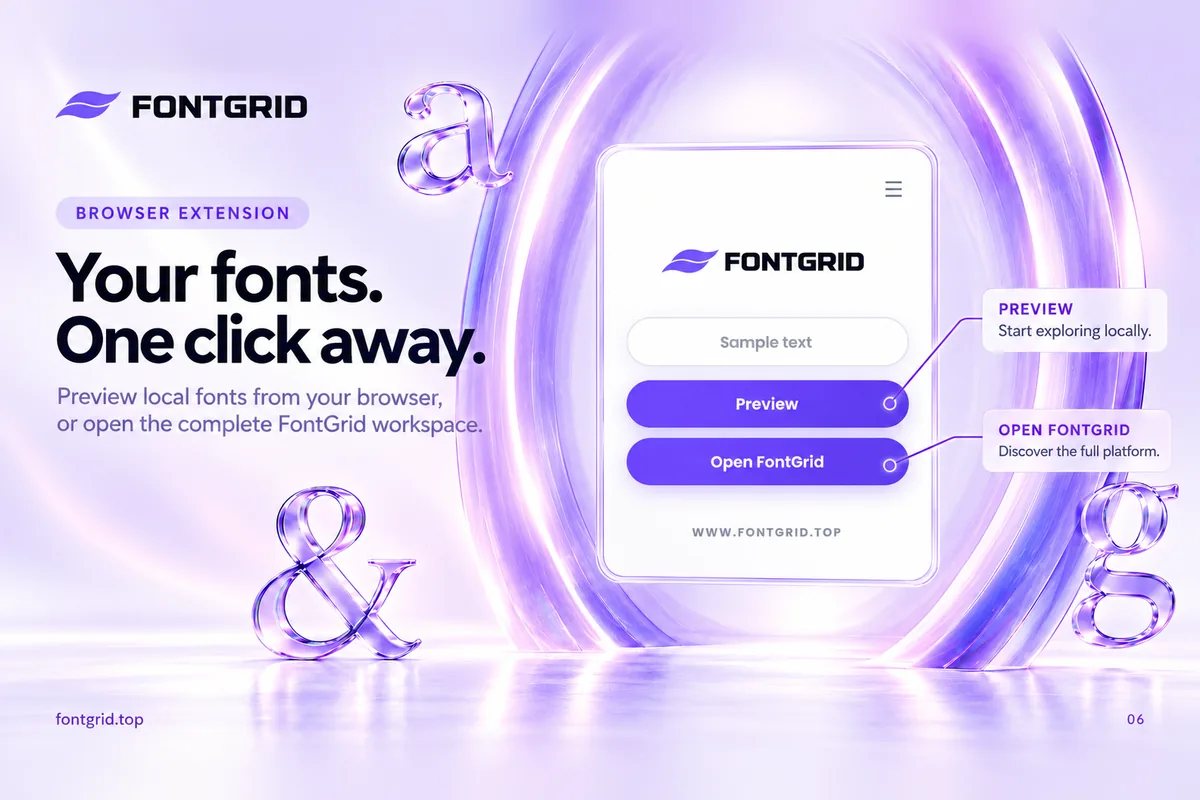
The extension lets you preview the fonts installed on your device, directly from Chrome, using your own text. You open it, type what you want to test, and see it across your fonts.
It is free for local preview, with support for up to 1,000 fonts available on your device. When you want more than a quick look, one click opens the full FontGrid workspace where you can search, bookmark, organize into collections and export.
In other words: the extension is the fast lane, the website is the studio.
When it is most useful
Quick checks while you work
You are writing a headline, designing a social post or reviewing a client's page. Instead of leaving the browser, open the extension, type the headline and look at it in your fonts. A decision that takes a minute rather than ten.
Testing the fonts you already own
Most designers already have a large library installed and use only a small part of it. The extension shows your own fonts, so you rediscover typefaces you forgot and avoid buying or downloading something new when the answer is already on your machine.
Moving between inspiration and decision
You see a typeface you like on a site. Open the extension, type a similar word, and find the closest fonts in your own library. Then bookmark them in FontGrid for later.
Client calls and quick reviews
When a client asks "what would it look like in something more modern?" you can test options on the spot, with their name or headline, rather than promising to come back later.
How to use it in four steps
- Install the extension from the Chrome Web Store.
- Open it from the toolbar on any page.
- Type your text. A brand name, a headline, a phrase. Use the real words.
- Scan the fonts and, when something looks right, open FontGrid to bookmark it, add it to a collection, or compare it.
Using it as part of a workflow
The extension fits well at the start of the process described in our guide to previewing fonts with your own text:
- Scan quickly in the extension.
- Shortlist by opening the full workspace and bookmarking.
- Organize candidates into collections.
- Decide with Font Compare or Font Pairing when you need the deeper tools.
Because the extension and the website share the same idea, your habits carry over. Nothing needs relearning.
What the extension is, and what it isn't
To be clear about what to expect:
- It previews fonts available on your device. It is not a store or a font download service.
- Local preview is free. Advanced tools such as Font Compare, Font Pairing, List View and grid settings are part of the paid plans in the full workspace.
- It does not change your fonts or install anything. It only shows them.
Always check a font's license before using it commercially. A preview tells you how a font looks, not whether you have the rights to use it for a given job.
Tips for better results
- Type realistic text. The name or headline you actually need.
- Try uppercase and lowercase. Some fonts change character completely.
- Test at a size close to real use. Large for headlines, smaller for supporting text.
- Don't scan forever. Pick three to five, then go deeper in the full workspace.
- Save what you like. A font you don't bookmark is a font you'll rediscover by accident, if at all.
Key takeaways
- The extension previews the fonts installed on your device from Chrome, with your own text.
- Local preview is free, up to 1,000 fonts.
- Use it for quick checks and open FontGrid when you want to save, organize, compare or pair.
- Fast lane in the browser, studio on the website.
Get it
Add FontGrid to Chrome and try it with the next headline you write. Or open fontgrid.top to see the full workspace.